

There has been a surge of hype around Claude in recent months — and for good reason. Claude, the AI tool developed by startup Anthropic, has become one of the world’s leading platforms since the rise of generative AI. It has always been strong, but in recent weeks it has demonstrated truly striking capabilities.

Today we will introduce readers to the free version of Claude, providing the basics for those who have never used it, or who tried it once or twice without fully understanding how it works. In future articles, we plan to cover some of the most talked-about tools of the moment, including Claude Code and Claude Co-Work. For now, take a deep breath, grab a cup of coffee, and get ready to learn.
Projects
As the name suggests, this feature is designed for managing ongoing work. It allows users to maintain persistent context with the system — instead of reintroducing yourself and your needs in every chat, you define them once and Claude remembers.
For example, someone working on a writing project can open a new conversation and continue exactly where they left off, without repeating background details. This makes it especially useful for regular use, not just one-off questions.
How it works:
Log in to Cloud and on the left side click on Projects. Give the project a name, upload documents, and define custom instructions. After that, every conversation within the project will already include all the context you entered in advance. Without this, every conversation starts from scratch.
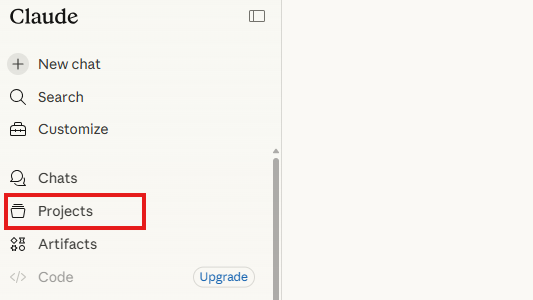
Projects on Claude
(Photo: Screen shot)
Artifacts
Despite the awkward name, this is one of Claude’s most powerful features. Artifacts are outputs that Claude generates and displays in a separate panel, rather than within the chat itself.
Whether it’s a document, table, code or even a webpage, the result appears in a dedicated window where it can be viewed, edited and downloaded. In simple terms: the chat is the conversation, the artifact is the output.
How it works: While you're having a conversation with Claude, just try asking something like "Show me a comprehensive analysis with graphs of the Excel I uploaded," or even "Make me a computer game of a dinosaur running away from aliens," and see what comes up.
Vision (image analysis)
Claude can analyze images. Users can upload photos, screenshots, scanned documents or graphs, and the system will interpret, transcribe and explain them.
You can also use it to analyze screenshots of software or websites. For example, uploading a grocery receipt can generate a categorized summary of expenses — a surprisingly powerful everyday use case.
How it works: Click the paperclip icon in the chat, upload a picture or PDF file, and continue with your questions to Claude as usual. Yes, it's that simple. For example, I almost regularly upload my receipts from the supermarket, and receive from Claude an excellent graphic summary of the purchase, including division into categories. An almost spiritual experience.
Memory
Claude learns from past interactions, remembering preferences and writing style for future conversations.
Unlike Projects, which are user-defined contexts for specific tasks, Memory is built automatically from everyday interactions — such as your name, profession or preferences — and applies across conversations.
How it works: Go to Settings and click on Capabilities. There you will see the Memory feature (it is important to make sure it is active). By the way, you can also ask Claude to say, "Remember that I started learning about you through the AI Academy on Ynet" - and he will remember that. You can also ask him to delete memories.
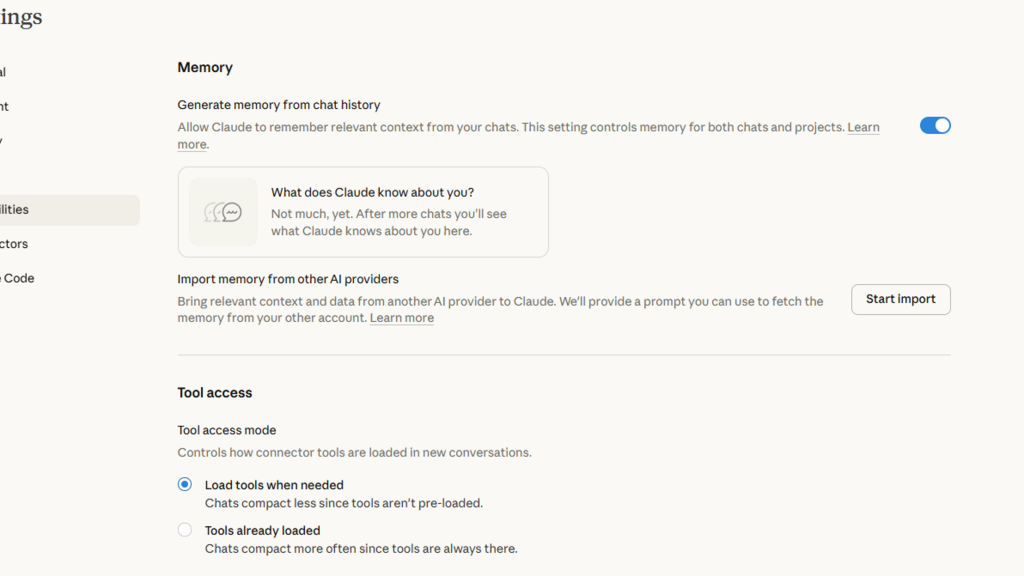
Claude's memory feature
(Photo: Screenshot)
Styles
Like other chatbots, Claude allows users to define a preferred writing style. For instance, you can instruct it to “always write in concise, business-style English” or “use a formal tone with detailed examples.”
Once set, the style applies automatically to future responses.
How it works: In the conversation window, click the plus sign in the lower left corner, and select the last option "Use Style." You can choose a pre-made response style (Formal, Concise, Explanatory) or define your own style. Just set it once, and every conversation will automatically have the right tone.
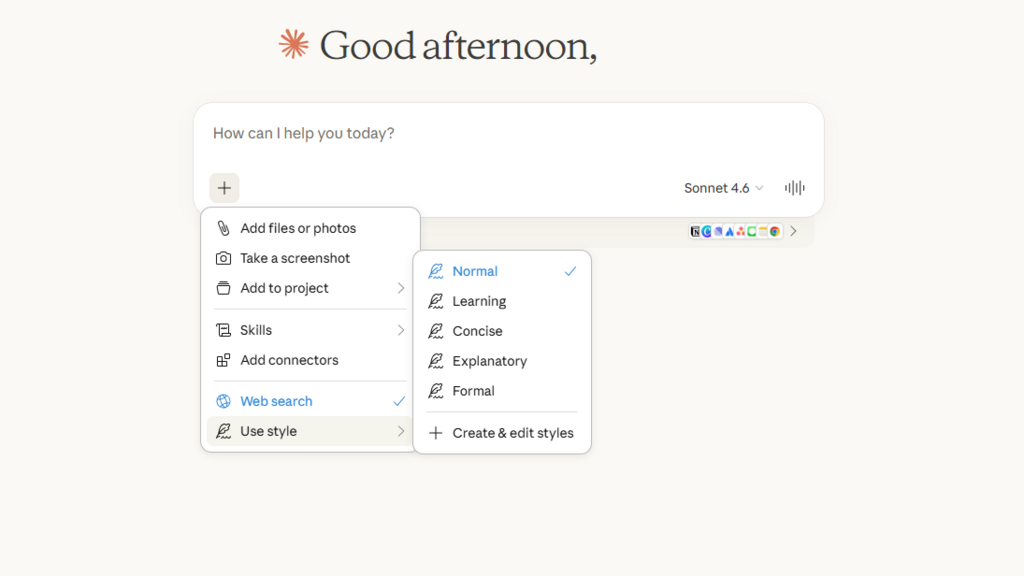
Claude's Styles feature
(Photo: Screenshot)
App Connectors
Claude can connect directly to platforms such as Google Drive and other apps. Instead of manually uploading files, users can instruct Claude to access documents directly.
Dozens of integrations are available, including tools like Figma and various Google services, streamlining workflows significantly.
How it works: Below the conversation window, you will find a small panel that offers you the option to connect apps to the cloud. Click on it and follow the instructions depending on the app you want to connect. If this panel does not appear automatically, click on the plus in the lower left corner, and select Add Connector.
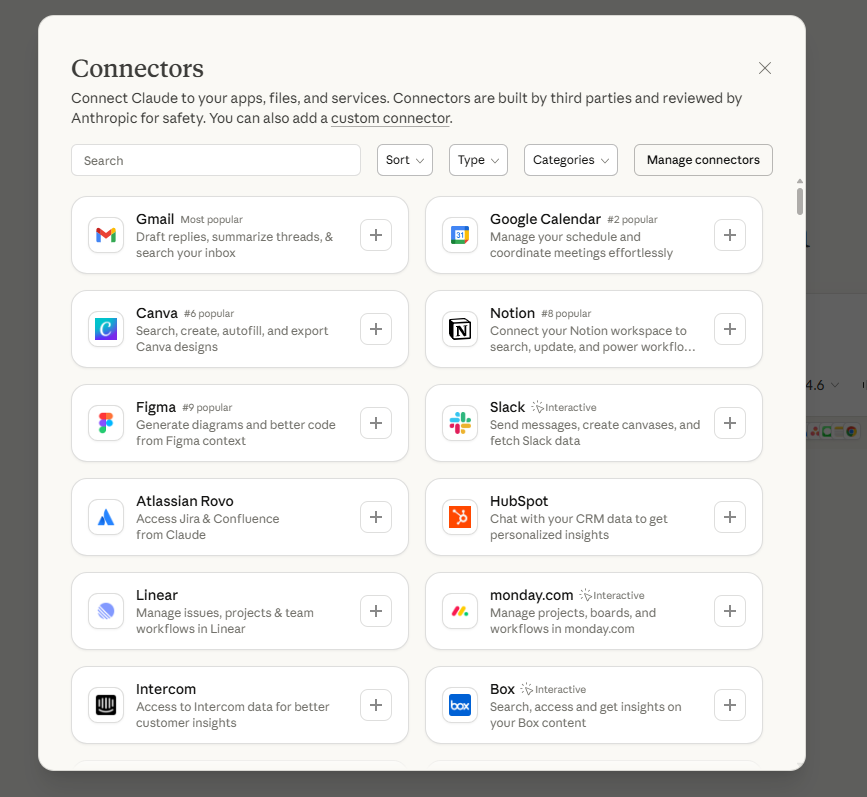
Connecting apps to the cloud
(Photo: Screenshot)
Web Search
Claude can search the internet in real time. Users can ask for up-to-date information and receive detailed answers with sources that can be verified.
This is particularly useful for tasks like finding flights or current data, though some permissions may be required for full functionality.
How it works: Click the plus sign in the bottom left corner of the conversation bubble and select Web Search. Keep in mind that you may need to allow Claude to connect to different websites for effective results, such as if you want it to search for cheap airline tickets for you. Otherwise, it will simply suggest recommended websites to purchase from.
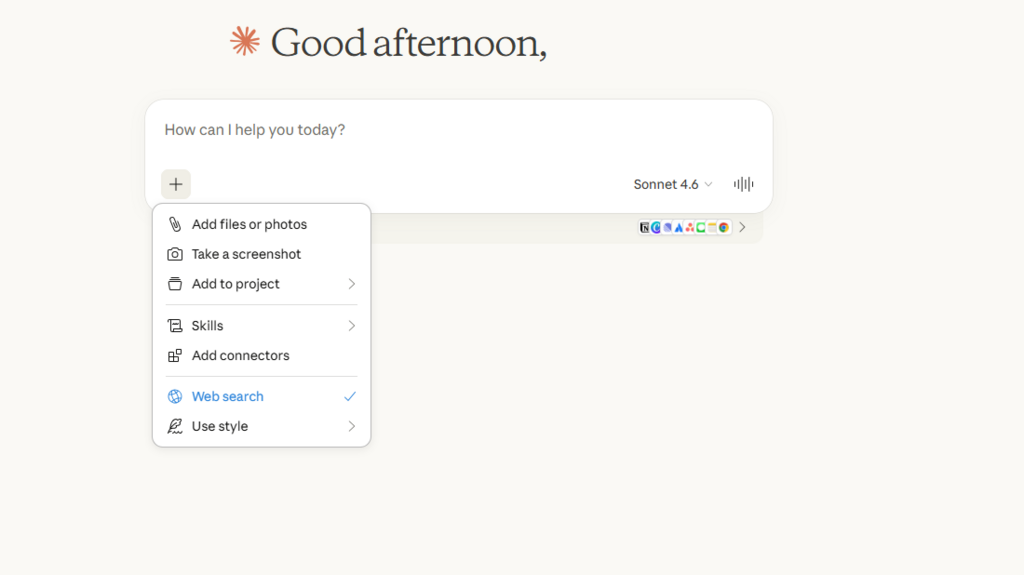
Claude's internet search
(Photo: Screenshot)
Three useful tips
Combining Projects and Styles can transform Claude from a generic chatbot into a highly tailored assistant.
Providing negative instructions — what not to do — often improves results.
Setting clear length limits, such as “three sentences” or “one paragraph,” helps keep responses focused.
The bottom line
These seven features turn Claude, even in its free version, from a basic chatbot into a powerful, practical work tool. Users who rely on AI only for emails or occasional questions are missing much of its potential.
First published: 00:20, 04.06.26